Conversations API v1 Quick Start
Send your first customer conversation to Onlo and find it in Inbox.
- For
- Teams that want to send customer conversations from their app to Onlo Inbox
- Needs
- You need a full-access Onlo API key.
- Time
- 10 minutes
Before you start
- Plan: Onlo Starter or above
- Access: Sign in as an Owner or Admin
- API tool: Use Postman, curl, or another API client
How to send your first conversation
Use the Conversations API to send customer conversations from your app to Onlo, so your team can handle them in Inbox.
Create your API token
If you do not have an API key, click here.
- Click
Create key. - Set
NametoTestingandScopetoFull — read + write. - Click
Create key, then copy the token immediately.
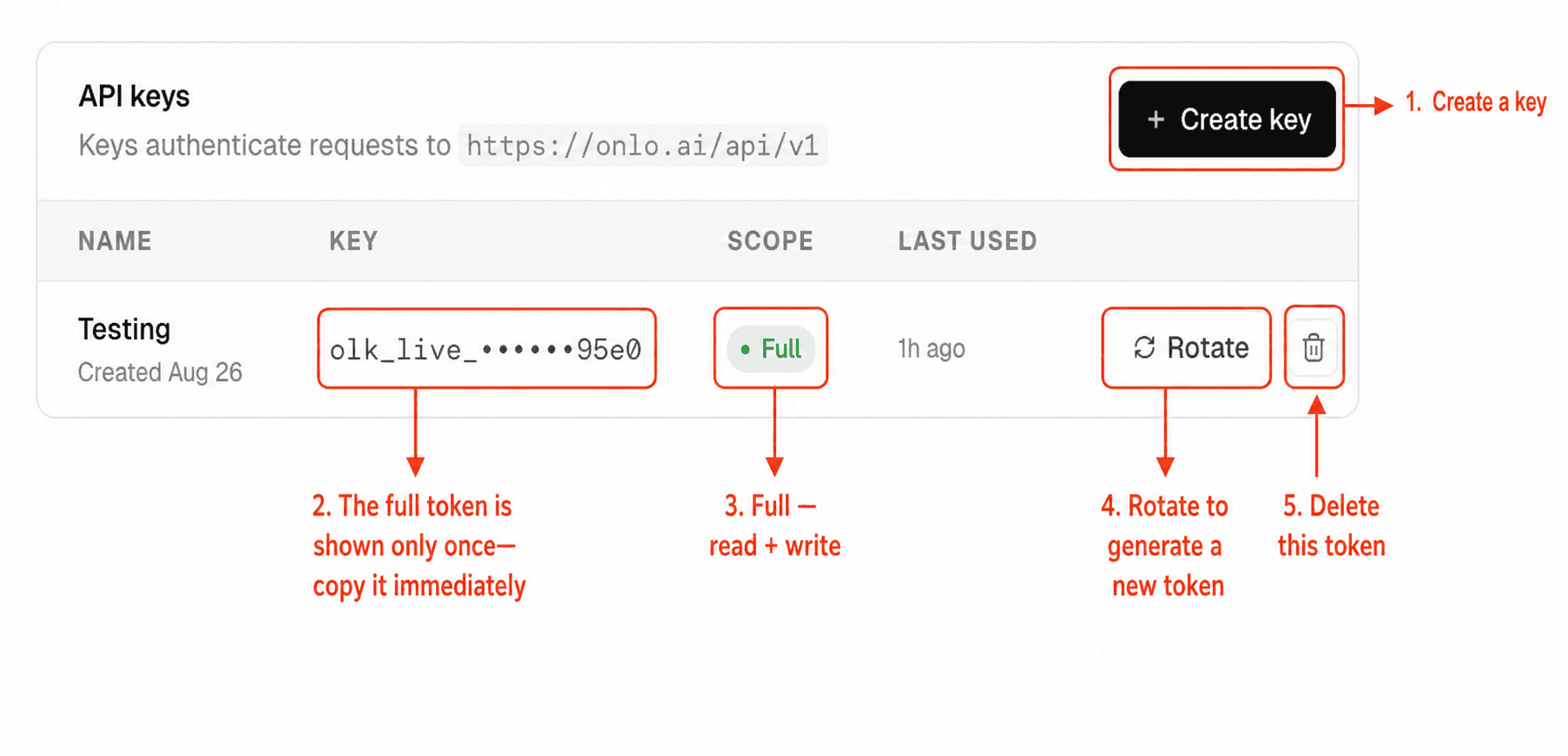
Create a key named Testing with Full — read + write access. ImportantCopy the token now. Onlo shows it only once.
- Click
Test connection
This proves your API key can connect to Onlo with Full access.
- Method
GET- URL
https://onlo.ai/api/v1/ping- Authorization
Type→Bearer TokenToken→Paste your API keyOpen the Authorization tab in Postman.- Headers
Content-Type→application/jsonOpen the Headers tab in Postman.
For API key and security details, click here.
NextKeep the same API key. You will use it to create the conversation.
Create a conversation
This creates one test conversation for Maya, stores the first customer message for manual Inbox handling, and stores four conversation attributes.
Fields used here
external_idRequired- Your unique ID for this conversation in your system. Reuse it if you retry.
subjectOptional- A human-supplied Inbox title. This is never generated by AI.
bodyOptional- The first customer message. It stays in Inbox for manual handling while API AI replies are off. Omit it when you only need an empty conversation record.
fromRequired- The customer attached to this conversation.
from.external_id or from.idRequired- Your unique ID for this customer, or an existing Onlo contact ID. Use only one.
from.typeOptional- Use contact. The API also accepts user, lead, and customer.
from.name / from.email / from.phoneOptional- Customer details your team can recognize in Inbox.
custom_attributesOptional- Flat string, number, or true-or-false values stored on this conversation, not on the contact.
- Method
POST- URL
https://onlo.ai/api/v1/conversations- Authorization
Type→Bearer TokenToken→Paste your API keyOpen the Authorization tab in Postman.- Headers
Content-Type→application/jsonOpen the Headers tab in Postman.
You send
external_id. Onlo returnsid. Use the returnedidin the Get and Update URLs.BodyBody → raw → JSON{ "external_id": "support_case_1048", "subject": "Order ORD-1001", "from": { "type": "contact", "external_id": "customer_4821", "name": "Maya Patel", "email": "maya.patel@example.com" }, "custom_attributes": { "order": "ORD-1001", "reason": "It's something else", "attempts": 2, "paid": false }, "body": "I need help with my order." }For every supported create field, click here.
NextCopy the returned id. You will paste that conversation ID into Steps 4 and 5.
Get the conversation
This proves Onlo saved the conversation and its attributes unchanged.
Fields used here
conversation_idRequired- The id returned by Onlo in Step 3.
- Method
GET- URL
https://onlo.ai/api/v1/conversations/<conversation_id>Replace <conversation_id> with the id you copied in Step 3.- Authorization
Type→Bearer TokenToken→Paste your API keyOpen the Authorization tab in Postman.- Headers
Content-Type→application/jsonOpen the Headers tab in Postman.
For full Get details, click here.
NextKeep the same conversation ID. You will update this conversation next.
Update the conversation
This changes attempts to 3 and removes reason by sending null.
Fields used here
conversation_idRequired- The id returned by Onlo in Step 3.
custom_attributesRequired- Only the attributes you want to change or remove.
attemptsOptional- Sending 3 replaces the previous value of 2.
reasonOptional- Sending null removes this attribute.
- Method
PUT- URL
https://onlo.ai/api/v1/conversations/<conversation_id>Replace <conversation_id> with the id you copied in Step 3.- Authorization
Type→Bearer TokenToken→Paste your API keyOpen the Authorization tab in Postman.- Headers
Content-Type→application/jsonOpen the Headers tab in Postman.
BodyBody → raw → JSON{ "custom_attributes": { "attempts": 3, "reason": null } }For full Update details, click here.
NextKeep customer_4821 and ORD-1001. You will use both to find this conversation.
Find the conversation
This searches for Maya’s test conversation using the same customer and order values.
Fields used here
queryRequired- The filters Onlo should match.
contact.external_idRequired- Limits the search to customer_4821.
custom_attributes.orderOptional- Narrows the result to order ORD-1001.
paginationOptional- Controls how many matching conversations Onlo returns.
- Method
POST- URL
https://onlo.ai/api/v1/conversations/search- Authorization
Type→Bearer TokenToken→Paste your API keyOpen the Authorization tab in Postman.- Headers
Content-Type→application/jsonOpen the Headers tab in Postman.
BodyBody → raw → JSON{ "query": { "operator": "AND", "value": [ { "field": "contact.external_id", "operator": "=", "value": "customer_4821" }, { "field": "custom_attributes.order", "operator": "=", "value": "ORD-1001" } ] }, "pagination": { "per_page": 50, "starting_after": null } }For all search fields and operators, click here.
NextOpen Onlo Inbox and confirm the same conversation is visible to your team.
Verify in Onlo
Open Dashboard → Inbox, select Maya’s test conversation, then open This conversation → Custom attributes.
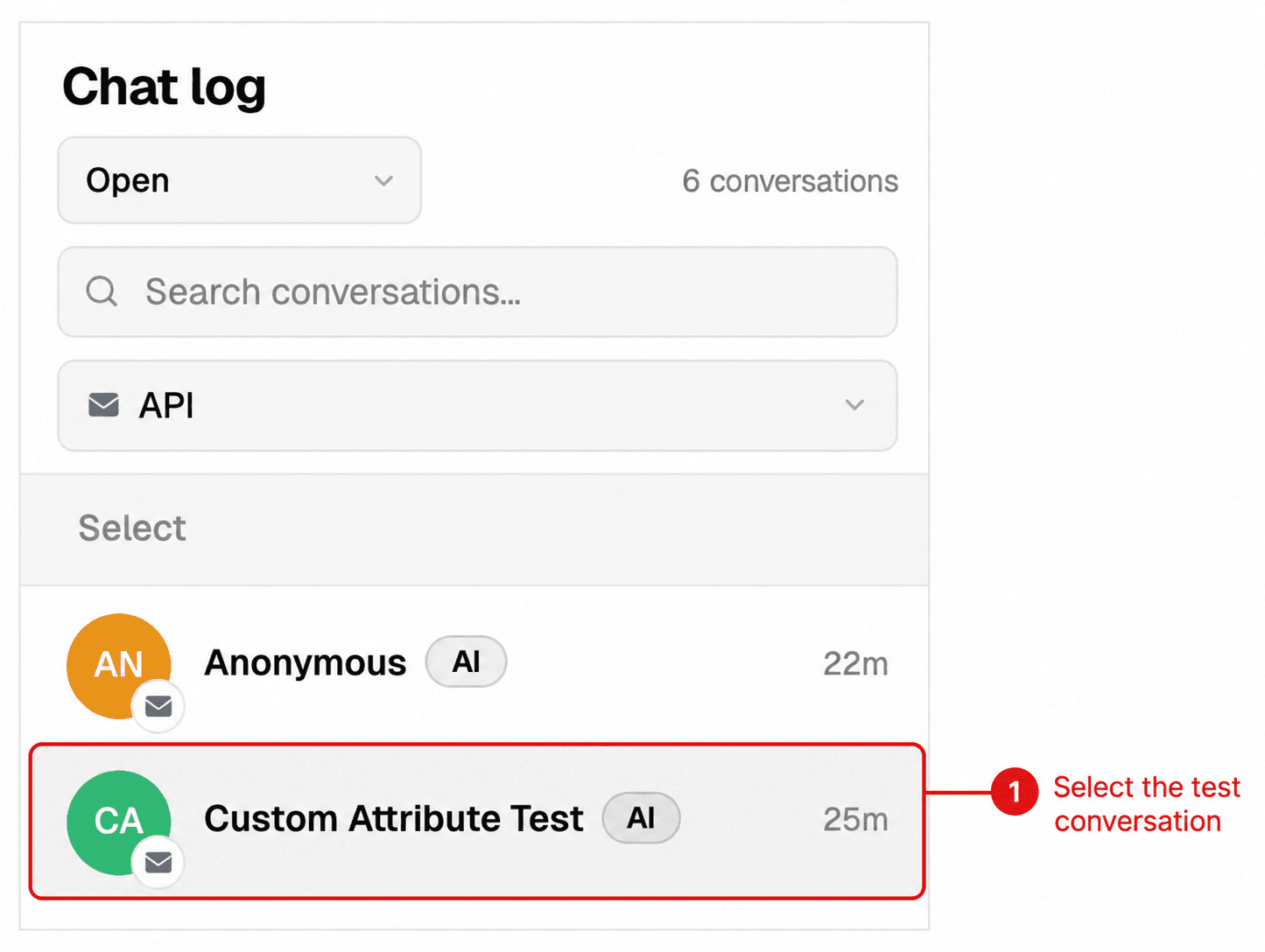
Select the test conversation. 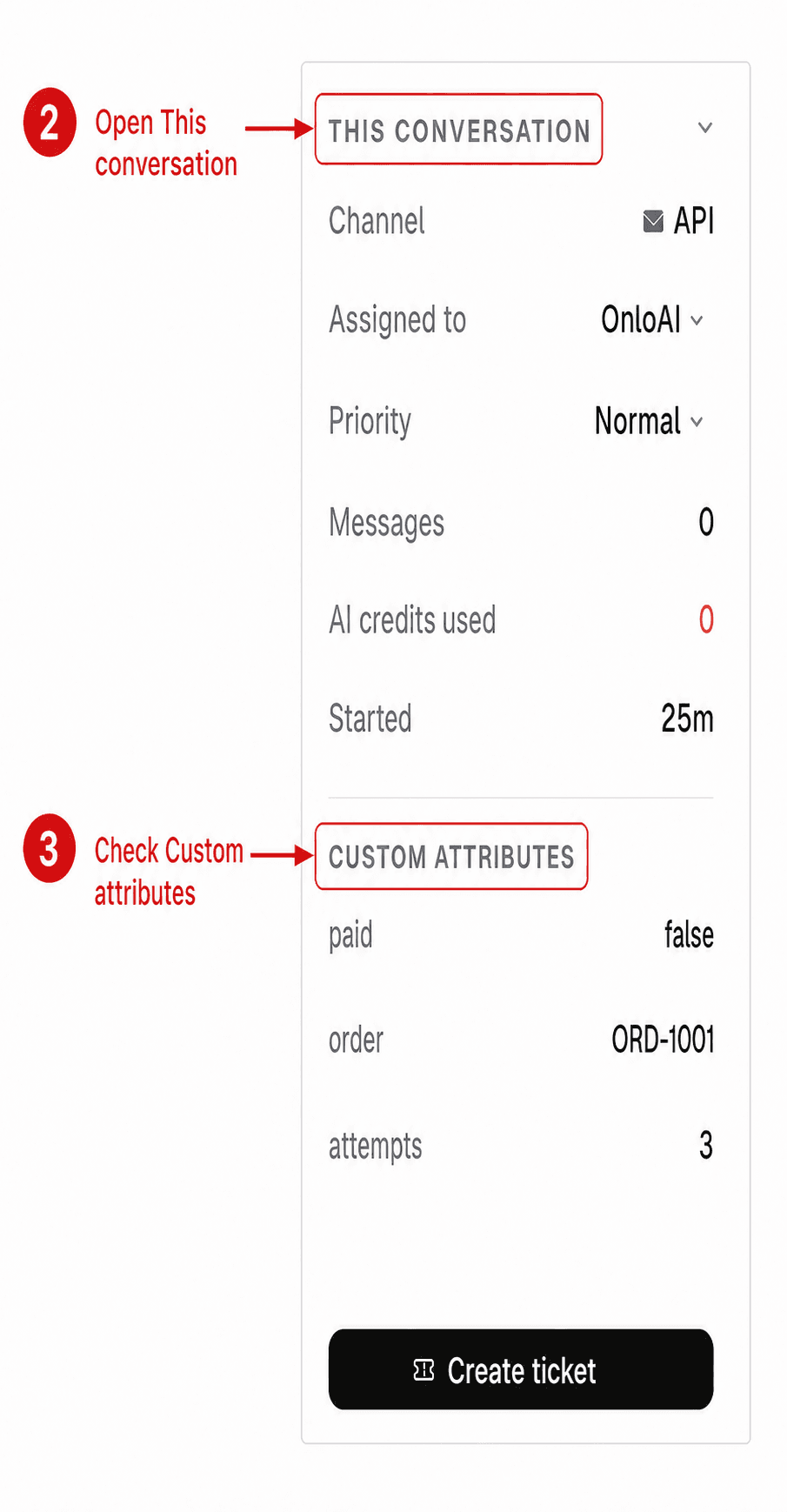
Open This conversation and check Custom attributes. The screenshots are cropped and marked so you can find the two controls quickly.
For the complete API Reference, click here.